
Organise tasks across projects, contexts, and locations without changing your hierarchy
Custom tags are reusable labels that add another layer of context to a task. A task can have multiple tags, so you might combine client atlas, deep work, and remote while keeping the task in its normal project hierarchy.
Tag names are stored in lowercase and extra spacing is normalised. Reusing the suggestions in the tag picker helps avoid near-duplicate tags.
Add or remove tags
Open Tags from any of these places:
- the action buttons on a task page
- the metadata area or menu on a subtask row
- the task edit dialog
- bulk selection when updating several tasks
- the create-task flow
The picker shows every tag already assigned to the task first, followed by commonly used tags. Select a tag to toggle it on or off. Changes appear immediately while dypt saves them.
Assigning practical tags to a subtask
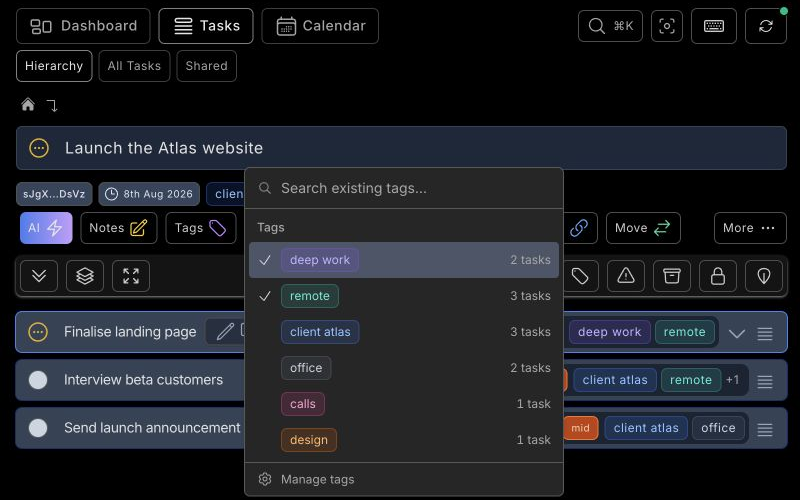
Create a tag
Search for the name you want in the tag picker. If no active tag matches, choose Create, select a colour, and save it. The new tag becomes available throughout dypt immediately.
If the name belongs to an archived tag, dypt identifies it as archived instead of offering to create a duplicate. Restore the existing tag from Manage tags when you want to use it again.
Filter tasks by tags
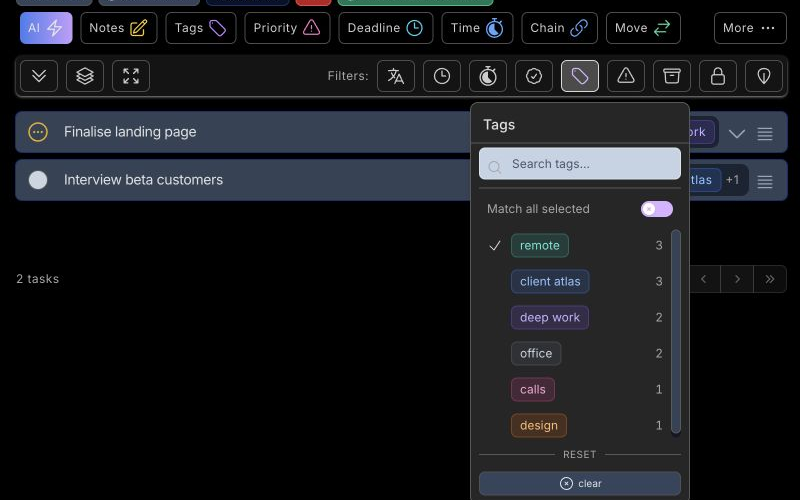
Open the Tags filter from a hierarchy, All tasks, or calendar view. Search the tag catalogue and select one or more tags.
- With Match all selected off, a task is shown when it has any selected tag.
- With Match all selected on, a task must have every selected tag.
Selected tag filters are stored in the URL, so you can bookmark or revisit the same filtered view. Active tags are prioritised in the compact preview shown above task rows, and dypt warns you when tasks are hidden by filters.
Filtering a task hierarchy with a selected tag
See filtering and sorting for combining tags with status, priority, deadlines, and the other filters.
Manage your tag library
Choose Manage tags at the bottom of the tag picker to maintain the account-wide catalogue.
- Rename or recolour a tag to update every assigned task.
- Archive a tag to hide it from assignment and filtering while retaining its existing assignments.
- Restore an archived tag when it becomes useful again.
- Merge a duplicate into another active tag to transfer its assignments safely.
- Delete a tag to permanently remove the tag and all of its assignments.
Usage counts show how many tasks use each tag, helping you decide which tags to keep or consolidate.
Create tasks with tags from Command K
When creating a task through Command K, add tag: or tags: followed by comma-separated tag names:
Draft launch retrospective tags:"client atlas","deep work"
The named tags must already exist. The shortcut accepts one or several comma-separated tags. Put multi-word tag names in quotes so they remain one tag; single-word tags do not need quotes. Keep the tag shortcut after the task title.
Use tags from the CLI
Create and inspect tags from the terminal:
dypt tag create "client atlas" --colour blue
dypt tag list
dypt tag list --query client
Assign existing tags to one or more tasks:
dypt tag assign 12345 --tag "client atlas" --tag "deep work"
dypt tag assign 12345 12346 --tag remote
dypt tag assign 12345 --clear
Remove selected tags (upcoming CLI release)
The next CLI release adds --remove to take selected tags off one or more tasks while keeping their other tags:
dypt tag assign 12345 --remove "deep work"
dypt tag assign 12345 12346 --remove remote --remove "deep work" --json
Before using these commands, check that dypt tag assign --help lists --remove. They require both a CLI release containing this option and a server with tag-removal support; the currently published CLI may not include it yet.
Each command applies all removals atomically. Removing an existing tag that a selected task does not have succeeds and leaves its other tags unchanged. Every name must match an existing active tag, using the same case and whitespace normalization as --tag; an unknown name fails without changing any tasks.
Choose exactly one mode: repeat --tag to add, repeat --remove to remove selected tags, or use --clear to remove all tags. These modes cannot be combined. The same tag-edit permissions and common-owner checks apply, with a limit of 500 tasks and 500 task/tag combinations per command.
Output follows tag assignment: human output shows the remaining tags. With --json, one task returns a tag array and multiple tasks return an array of tag arrays in task order.
Create, filter, and maintain tags
Create a task with tags, or filter a task list by any or all selected tags:
dypt task create "Draft launch retrospective" --tag "client atlas" --tag "deep work"
dypt task list --tag remote
dypt task list --tag remote --tag "deep work" --tag-mode all
Tag IDs are shown by dypt tag list. Use them to rename, recolour, archive, or restore a tag:
dypt tag update tag_abc123 --name "client work" --colour violet
dypt tag update tag_abc123 --archive
dypt tag update tag_abc123 --restore
You can also merge a duplicate tag into its destination or permanently delete an unused tag:
dypt tag merge tag_duplicate tag_destination --yes
dypt tag delete tag_unused --yes
Merge transfers every assignment to the destination before deleting the source. Delete permanently removes the tag and all of its assignments. Both commands require --yes as an explicit confirmation. Run dypt tag --help for the complete command reference.
Local mode, sync, and sharing
Tags work in Local mode, including while offline. Assignments and catalogue changes sync after you reconnect.
People collaborating on a private shared task can see the tags assigned to that task. Your full tag catalogue remains private, and tags are not exposed on public task links.