
It's easy to move or copy tasks in dypt
Move a task
- Drag the task onto another to make it a child of that task; or
- Use the "Move" action and select the parent task shown in the breadcrumbs to move it up a level
You can also move a task across your hierarchy in one go by directly searching for the task to move it to by clicking the "Move" action button or by clicking the menu icon at the right of a subtask and selecting "Move".
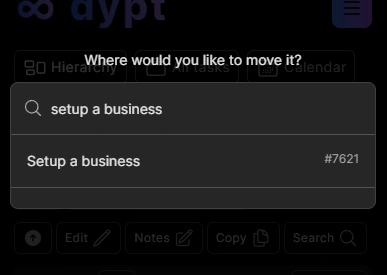
Alternatively press the "m" key when you have a task selected.
Copy a task
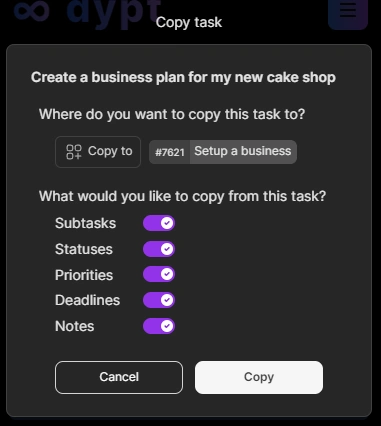
- Open the copy dialog:
- Press the "Copy" button when viewing the task you wish to copy or press the menu icon at the right of a subtask and select "Copy"
- Select a parent task:
- A dialog will open allowing you to select where you would like the task to be copied to
- Choose the properties to copy:
- Select which properties of the task you want to copy:
- Subtasks
- Statuses
- Priorities
- Deadlines
- Notes
- Select which properties of the task you want to copy:
- Confirm:
- Press "Copy" to confirm. A pop-up will appear asking
Alternatively press the "c" key when you have a task selected.