
Managing multiple tasks at once
dypt makes it simple to manage multiple tasks at once. Whether you want to move tasks, change their status, set priorities, add deadlines, manage blockers, copy tasks, archive them or delete them, you can do it from multiple selection mode.
Multiple selection mode
The first step is to enable multiple selection mode. To do this, click the "Multiple selection" button in the subtasks header, next to the task details button. You can also press "Shift + m" to toggle multiple selection mode.
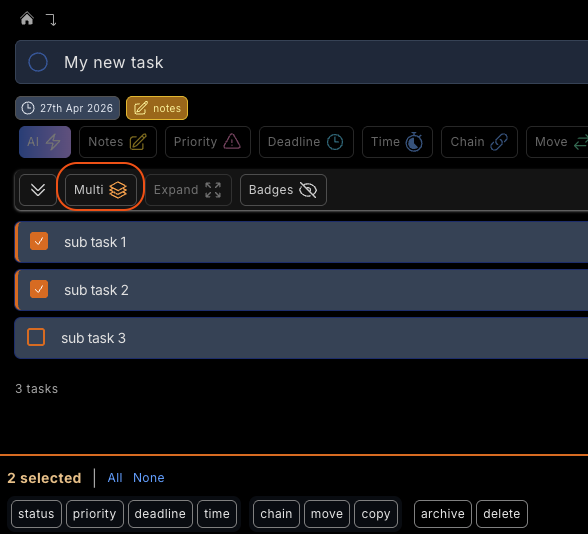
You'll see that the subtasks now have additional orange checkboxes next to them on the right and that a control panel has appeared at the top of the subtasks.
Selecting subtasks
When multiple selection mode is active, all the usual ways of selecting a subtask become inactive. For example, whilst you can still see the status checkboxes on the left of a task for reference, clicking on them will not change the status of the task.
Select all the subtasks that you would like to update by checking the orange checkbox on the right, or by pressing "Space" when a subtask is selected with the keyboard.
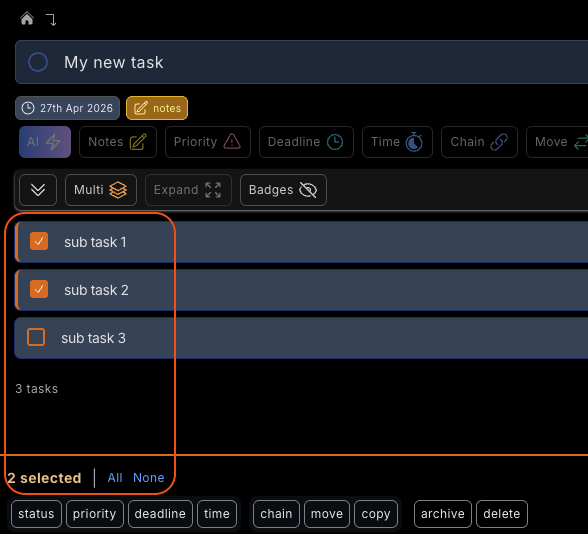
Alternatively, you can press the "all" or "none" buttons in the multi mode control panel to select all or none of the subtasks to speed up the selection process.
Performing an action on multiple subtasks
Now that you have made your selection of subtasks, you will see that the action buttons in the multi mode control panel have become active. Click on one of the actions to apply that action to all of the selected subtasks.

Available actions include setting status, priority, deadline, time, dependencies, moving, copying, archiving and deleting. AI time estimates are also available for selected tasks if you have AI actions remaining.
Some bulk actions open a dialog so you can choose exactly how the action should apply. For example, bulk deadlines let you pick a shared deadline for the selected tasks, and dependency actions let you add or remove blockers.
After the action is complete, multiple selection mode will be disabled, and you should be able to see the results of your action.
Disabling multiple selection mode
If you change your mind, you can disable multiple selection mode at any time by clicking the "Multiple selection" button again in the subtasks header. You can also press "Shift + m" to toggle multiple selection mode.