
Master the dypt layout
Let's take a look at the dypt app layout and how to navigate around. It's where you can create tasks, view your dashboard, plan from your calendar, manage settings and generally stay on top of your tasks.
The dypt app layout
dypt is mobile and desktop friendly, which means its design adapts to the size of your screen. This allows you to use dypt on any device, from your phone to your tablet to your laptop. It also means you can use dypt on the go, at your desk or on the sofa.
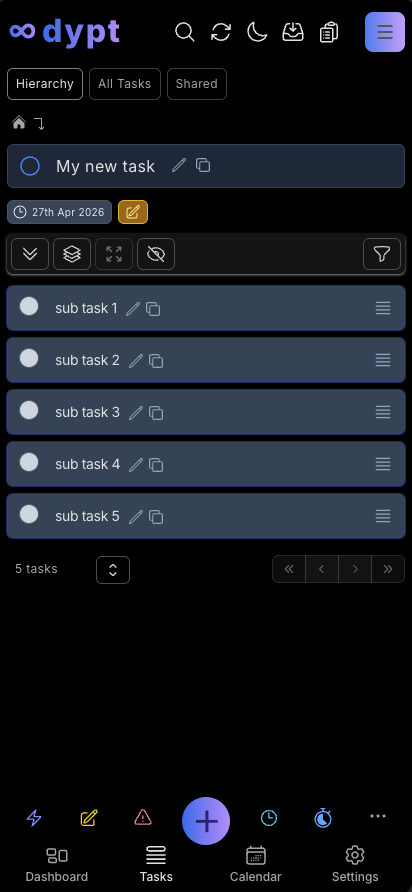
Mobile layout
The mobile layout is designed to be used with one hand. It's useful for quickly adding tasks, checking what is due and reviewing your calendar while you're on the go.
Desktop layout
The desktop layout is designed to be used with a mouse and keyboard. It's useful when you want more space for navigation, task lists and keyboard-driven workflows.
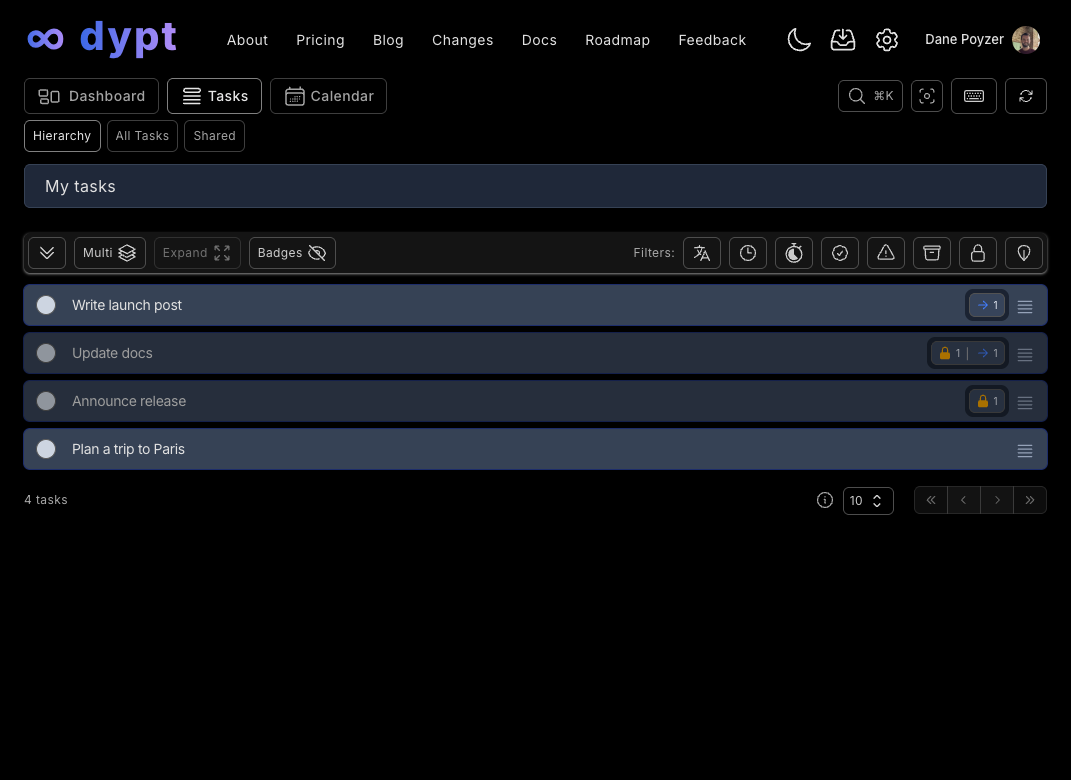
The main navigation gives you quick access to Dashboard, Tasks and Calendar. The header also includes search, invites, your guide checklist, settings and your account menu.
Key pages
The dypt app is made up of a number of pages. Each page has a specific purpose. Here's a quick overview of each page.
Dashboard
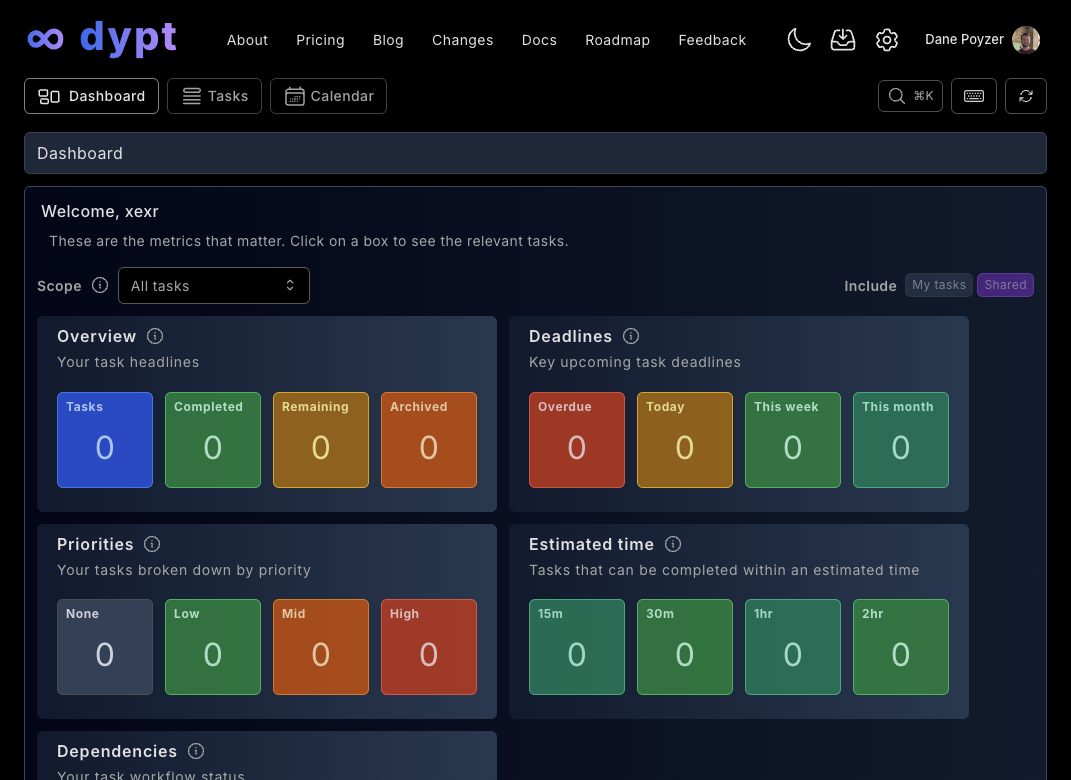
The dashboard shows you a summary of your tasks and their statuses and deadlines. It's a great way to get an overview of the important stuff at a glance.
You can click on each of the boxes to be taken to the tasks. For example, clicking on the 'Overdue' box will take you to the 'All tasks' page with the overdue filter applied.
You can also choose to include tasks that have been shared with you in the dashboard by clicking the purple 'Shared' button at the top of the dashboard. This allows you to see all of your tasks and tasks that have been shared with you in one place.
Tasks
Your tasks in dypt are organised into a hierarchy; whereby any task can have subtasks. This allows you to break down large tasks into smaller, more manageable tasks.
It's entirely up to you how many levels of hierarchy you use, sometimes a task stands alone and doesn't need any subtasks. Other times you may want to break a task down into many subtasks, and then break those down into even more subtasks.
The tasks page has three sub pages:
- Hierarchy provides a visual representation of your tasks and their hierarchy. It's a great way to get an overview of your tasks and their relationships. Starting at the top 'home' level, it allows you to drill down into each task and its subtasks until you reach the end of the 'branch'.
- All tasks provides a flat list of your tasks, offering a comprehensive overview of their statuses. You can also use it to quickly find a task and view its details. It's most useful when you want to filter for a specific set of tasks. For example, you can filter for all tasks that are due today, or all tasks that are in progress.
- Shared provides a list of tasks that have been shared with you. It's most useful when you want to see all of the tasks that have been shared with you in one place.
Calendar
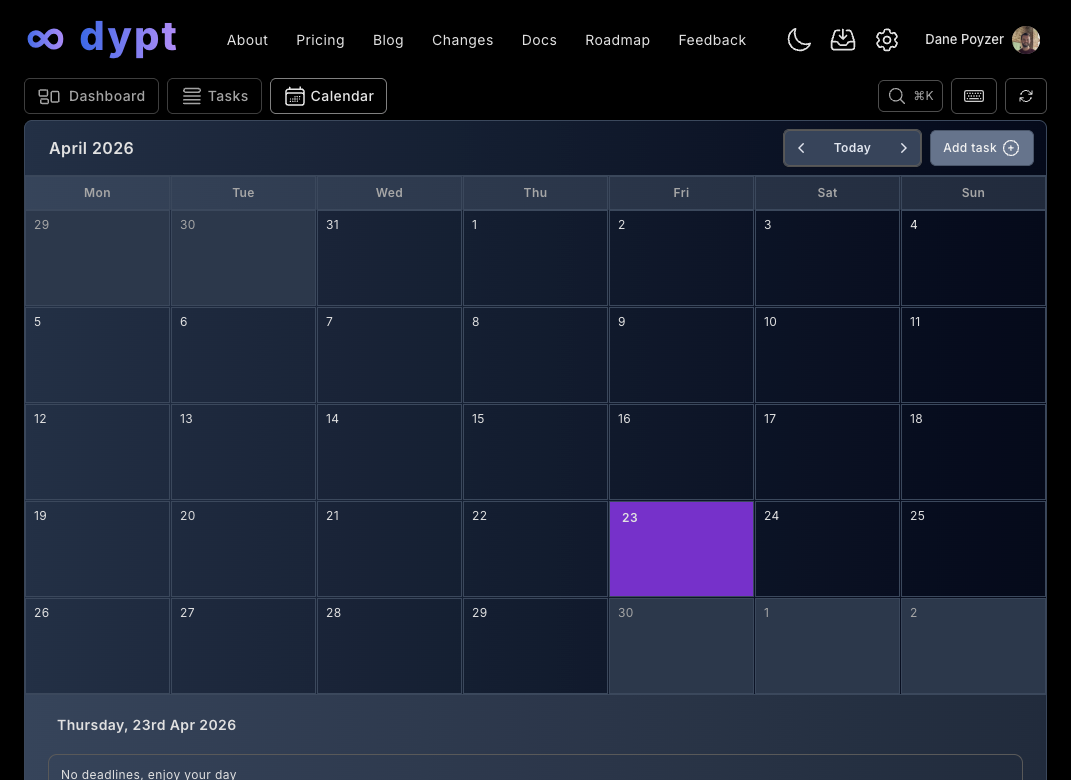
The calendar provides a visual representation of your tasks and their deadlines broken down into months.
It's most useful when you want to see what's due in the future. For example, you can see what's due today, next week or next month.
Select a day to view a breakdown of the tasks due on that day beneath the calendar. Select a task to be taken to that task's page.
You can also add a task to the calendar with a preselected deadline by selecting a day and then pressing the 'Add task' button.
Settings
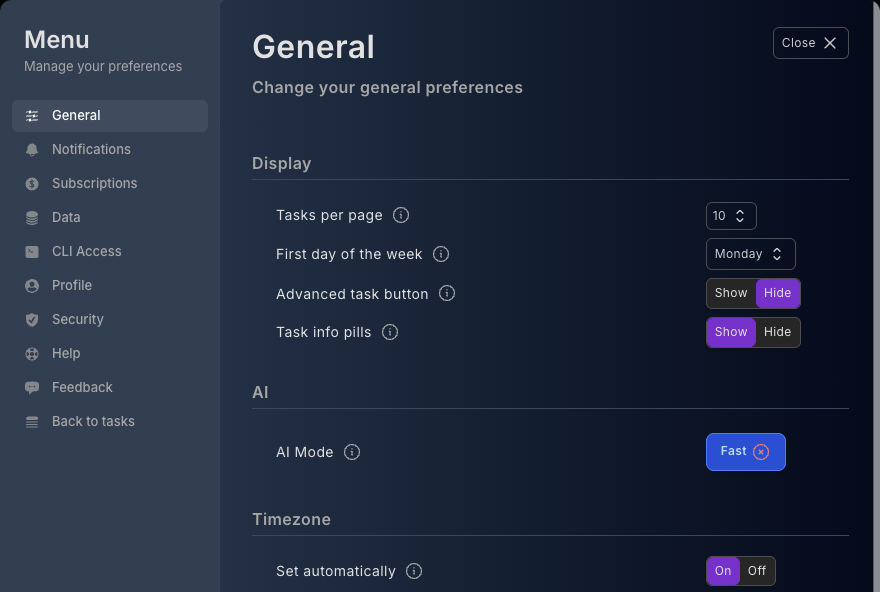
Settings is where you manage account details, preferences, notifications, your plan, data import/export, CLI access, help, guides and docs links.
You can revisit the in-app guides from Settings → Help → Show checklist. The guide checklist is also available from the header, so you can continue or restart guides without leaving the page you're on.
Layout of the task pages
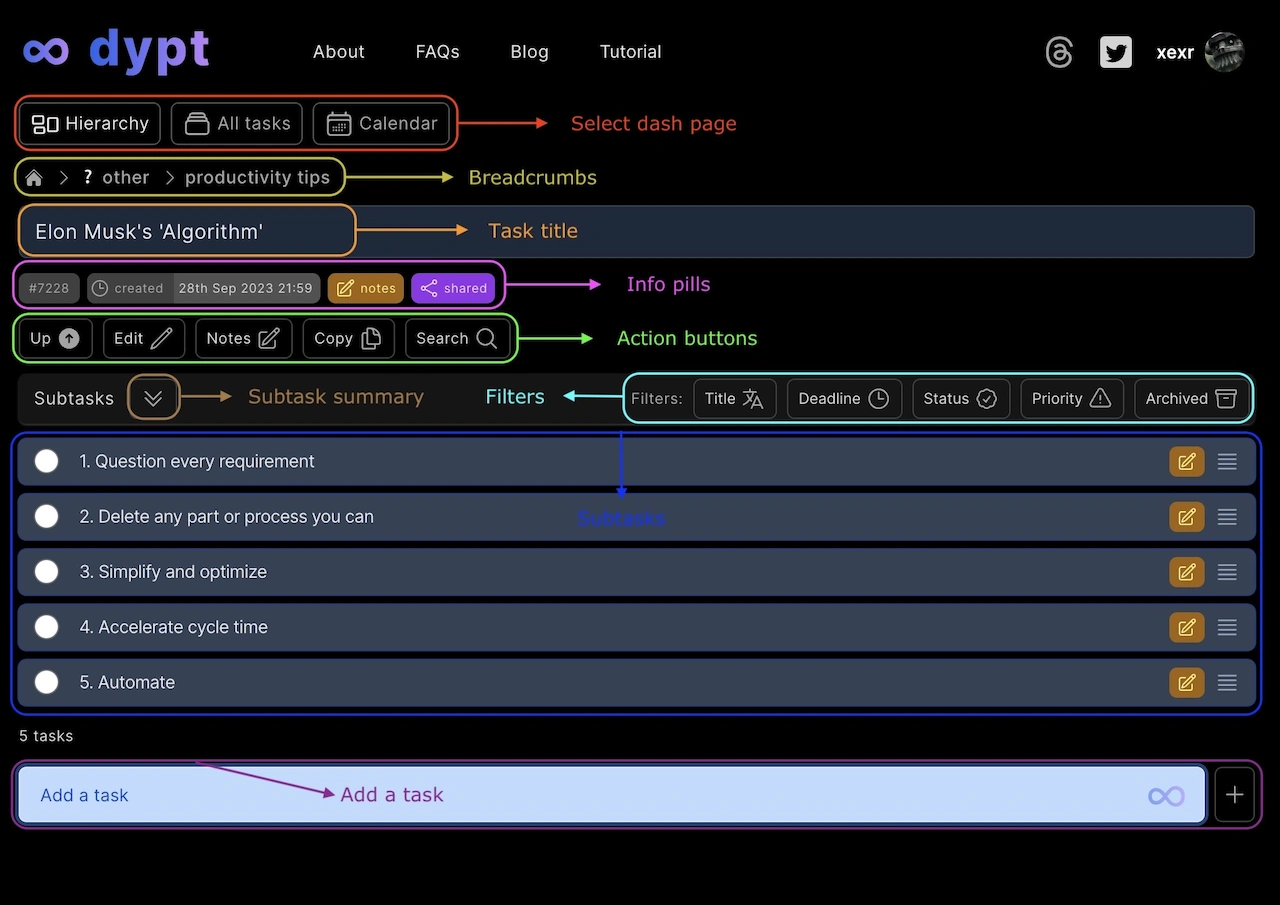
Each of the task pages is similar in design. They use a task list where each row represents a task or subtask.
When you click on a task, you'll be taken to that task's page. This page shows you the details of the task itself as well as a breakdown of that task's subtasks and their statuses.
Breadcrumbs
The top of the page shows you the breadcrumbs of the task's hierarchy. This is a representation of the position of the task in the hierarchy. You can click on any of the breadcrumbs to be taken to that task's page.
Task details
Next, the task title is shown in a heading bar. This is followed by a series of information 'pills' that show you key information about the task, such as its creation date, deadline, priority and shared status.
Action buttons
Beneath the information pills you will see action buttons for the current parent task. Available actions depend on your permissions and screen size, but commonly include:
- AI - use AI to break down the current task, generate ideas, create shopping or packing lists, estimate time, or add tasks from an image
- Notes - open the notes for the task
- Priority - set the task priority
- Deadline - set deadlines and reminders
- Time - record or update time spent
- Chain - manage task dependencies
- Move - move the task and its subtasks to another parent
- Copy - copy the task and its subtasks to another parent
- Repeat - set the task to repeat at a specific interval
- Share - share the task publicly or privately
- Archive / Unarchive - hide or restore the task from archived views
- Delete - delete the task and its subtasks
On smaller screens, some actions move into the More menu. On mobile, these actions are available from the bottom action bar.
Subtasks
Beneath the action buttons is the subtasks section.
It has a heading bar which contains:
- Task summary - shows and hides detailed counts by filterable category
- Multi mode - enables or disables multi mode which allows you to perform actions on multiple subtasks at once
- Expand/collapse - expands or collapses all subtasks to show you each of their subtasks in a preview on the current page
- Task details - toggle between showing or hiding the task info pills for each subtask (e.g. deadline, priority, shared etc)
- Filters - buttons (via a drop down on mobile) that let you filter and sort by title, deadline, time, status, priority, and archived state
Beneath the heading bar is a task list where each row represents a subtask of the current task.
Task status icons
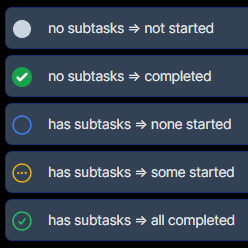
When you initially add a task, there will be a checkbox which you can toggle to set the status of that task. Once you add a subtask to a task, the parent`s status becomes determined by the aggregated status of its subtasks:
- An empty blue circle indicates no subtasks have been started yet
- An orange circle with an ellipsis indicates some subtasks have been started or completed but not all
- A green circle with a checkmark indicates all subtasks have been completed.
Pagination
If there are more than 10 subtasks, pagination controls will be shown at the bottom of the subtasks list. You can use these to navigate between pages of subtasks.
You can also use the keyboard to navigate between pages of subtasks. Press the "[" and "]" keys to navigate between pages, hold shift to navigate to the first and last pages.
You can also change the number of subtasks shown per page by clicking the drop down and selecting a number. Alternatively press the "r" key to cycle between the available options.
You can set a default number of subtasks to be used across sessions in General Settings.
Add task input
At the bottom of the page is an input field that allows you to add a task to the current page.
See the managing tasks page for more information on adding tasks.
Navigation
Navigating between tasks
Click on a task to be taken to that task's page.
You can also use the keyboard to get around (provided your cursor isn’t in an input field). Press the up and down arrow keys to select a task. Press right to go to the selected task’s page.
Returning to the parent task
Click the parent task in the breadcrumbs at the top of the page, or press the left arrow key provided you aren’t editing a task.
You can also navigate directly to any other ancestor task by clicking its breadcrumb.
Returning to your top level tasks
Click the dypt logo, home icon, or press the "h" key, provided you aren’t editing a task.
Searching for tasks
Click the search button just beneath the header or press the "f" key to start searching. You can search by title or task id. To stop searching, click elsewhere or press ESC.