
Master your task management with dypt
Managing your tasks is easy with dypt. You can add, edit, move, copy, archive and delete tasks with ease. You can also set deadlines, priorities and notes for your tasks.
Adding tasks
Adding a task
Adding a new task via the quick input
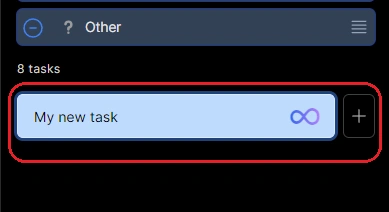
Adding a new task via the advanced input
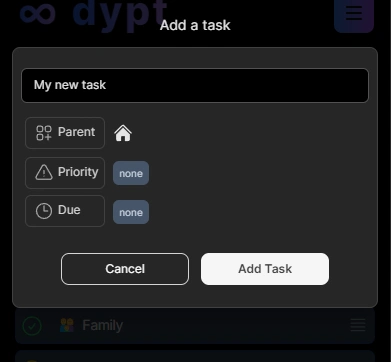
On desktop, you add tasks by typing in the "Add Task" input bar at the bottom of the page. On mobile, use the floating + button to open the add task dialog.
The desktop input has several buttons with different behaviours:
- "+ (circle)" adds the task to the current page immediately (kb: enter)
- "∞" adds the task to the current page immediately and breaks it down with AI (kb: ctrl+shift+enter)
- "+ (square)" opens a dialog that allows you to add the task and preset certain properties such as the parent task, deadline and priority (kb: ctrl + enter)
By default, the third button is hidden for simplicity. You can choose to show it in General Settings.
You can add new lines to the input field by pressing "Shift + enter".
If your cursor isn't already in the add task input, jump to it by pressing "Shift + n".
Adding subtasks to a task
Click on the task or press the → key when you have a task selected. You will be taken to that task’s page where you can add as many subtasks to it as you like. You can even add subtasks to subtasks.
Adding AI generated subtasks to a task
See the using ai page.
Editing tasks
Desktop task controls
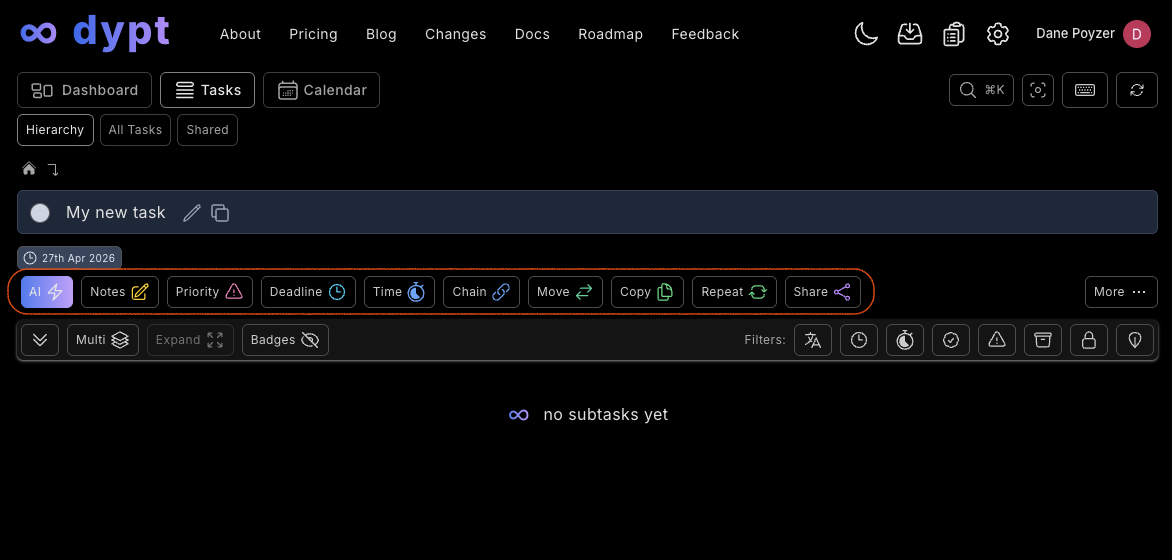
On desktop, the main navigation for Dashboard, Tasks and Calendar appears at the top of the app. When you are viewing a task, the task title row is shown near the top of the page, the add task input bar stays at the bottom, and the current task's action buttons are shown above the subtasks list.
Desktop task action buttons
Mobile task controls
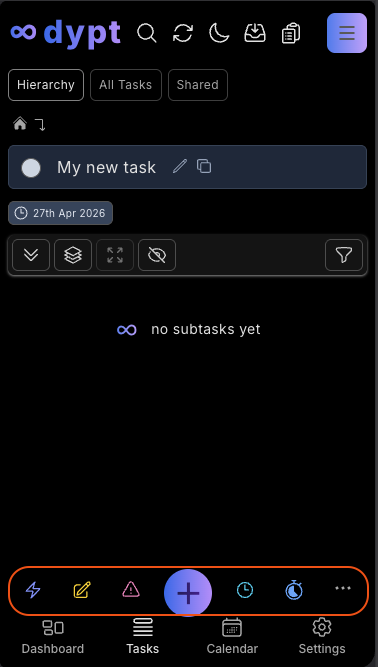
On mobile, the main navigation moves to the bottom of the screen with Dashboard, Tasks, Calendar and Settings. The floating + button opens the add task flow, and the current task's action buttons sit in the bottom action bar where they are easy to reach with one hand.
Mobile task action buttons
Opening a subtasks popup menu
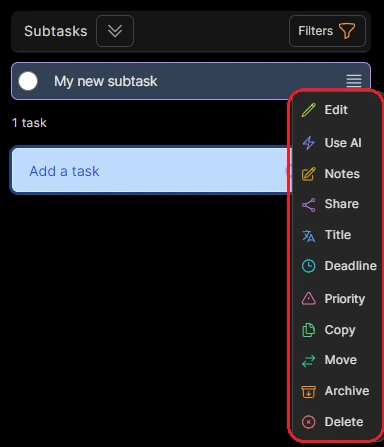
Editing a task
Use the relevant action button for the property you want to change.
For example, use Priority to change priority, Deadline to change deadlines and reminders, Time to update time, Move to change a task's parent, Repeat to manage repeating schedules, and Share to change sharing.
Editing a task's title
Task titles are edited in place. Click the edit icon in the parent task header, or the edit icon on a subtask row.
The task's title will change to a text input for you to make your changes. When you've finished, click away from the input or press ESC. Changes are saved automatically.
Reordering tasks
Click and hold a task to enter drag mode
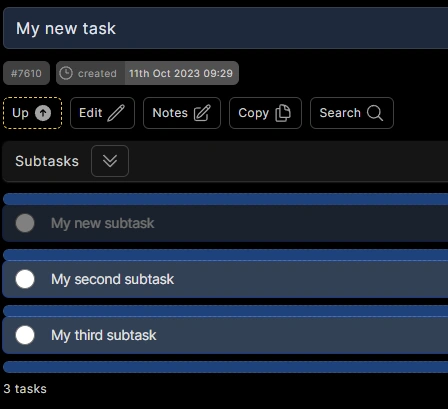
On the hierarchy tab, tasks are ordinarily ordered by the date they were created.
You can change this by dragging the task to a new position. As you click and hold, you'll enter drag mode and the task you have selected will be highlighted.
As you move your mouse up and down you'll see the other tasks move out of the way of it. Release the task to drop it into the new position.
Note, that if you drop a task on top of another (when the other task is highlighted), you will move the dragged task to that task instead. Ensure you drop tasks between other tasks to reorder them instead of moving them.
You can also press Shift+↑ or Shift+↓ when you have a task selected to move the task up or down.
You can't change the order of tasks on the all tasks tab as order is relative to the parent task.
Setting a task's completion status
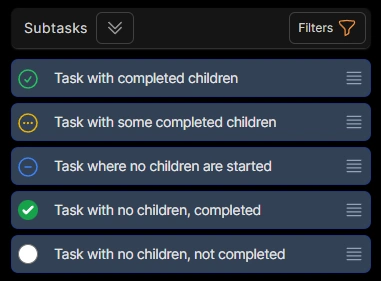
For tasks without subtasks, click the checkbox or press Spacebar to switch between ’Not Started’ and ’Completed’.
If your task has subtasks, then its status is determined by the aggregated status of its subtasks. To mark it as completed you need to mark all of its subtasks as completed.
You can filter by status, see the filtering and sorting page.
Setting a task's priority
Click the Priority action button for the current task, or click the menu icon at the right of a subtask and select Priority.
You can select between low, mid or high. Alternatively, you can press 0, 1, 2, or 3 to set the priority of the currently selected task.
You can filter by priority, see the filtering and sorting page.
Setting a task's deadline
See the deadlines and reminders page.
You can filter by deadline, see the filtering and sorting page.
Adding tags to a task
Use Tags on the task page, in a subtask menu, or in the task edit dialog to add reusable context such as a project, work type, or location.
See the custom tags guide for assignment, filtering, tag management, Local mode, Command K, and CLI workflows.
Time tracking
See the time tracking page.
You can filter by time, see the filtering and sorting page.
Moving a task to another parent
See the moving and copying page.
Making a copy of a task
See the moving and copying page.
Setting a task to repeat
See the repeating tasks page.
Adding notes to a task
See the notes page.
Sharing a task
See the sharing page.
Deleting and archiving tasks
Archiving a task
Click the menu icon at the right of the task & select Archive or press the "a" key to toggle whether a task is archived. Archived tasks are hidden from view by default.
You can also swipe a subtask to the right to archive it.
To show and hide archived tasks, see the filtering and sorting page.
Deleting a task
Click the menu icon at the right of the task & select Delete or press the Delete/Backspace keys.
You can also swipe a subtask to the left to delete it.
- Tasks without subtasks will be deleted instantly.
- Tasks with subtasks will ask you to confirm by typing 'delete' before you can delete them. This is to prevent accidental deletion, it can be disabled in General Settings.