
Unleash dypt's intelligent AI to kickstart your tasks and spark creativity
You can use dypt's AI features to help you get started with a task. You can use it to:
- break down a task into subtasks
- generate ideas for a topic
- create a shopping list
- create a packing list
- add tasks by interpreting an image
- generate estimates of how long tasks will take
- clean up notes
- extract action items from notes
AI Mode
dypt offers two AI modes:
- Fast - This is the default mode. It is quick and works well for most tasks.
- Deep - This uses a more capable model for higher quality results. It is best when the task is more complex or you want a more considered answer.
Both modes use 1 AI action each time you run an AI feature.
The free dypt Starter plan includes 25 AI actions per month. The Pro plan includes 200 AI actions per month. The VIP plan includes 500 AI actions per month.
You can switch between Fast and Deep from the AI menu before running an AI action. You can also change your default AI mode in your general settings.
You can view your remaining AI actions in the AI menu and in your subscription settings. Your AI actions reset each month in line with your subscription billing cycle.
If you run out of AI actions, you can upgrade to a premium plan to get more. Alternatively, you can wait until the next month when your usage resets.
Accessing dypt's AI features
You can access the AI features from the places where you are already working:
1. When adding a task

On desktop, press the infinity logo in the add task input to add a task and immediately start breaking it down with AI.
Alternatively, press "CTRL + SHIFT + Enter" to add a task with AI. On mobile, use the floating + button to add a task, then use the AI option from the task controls.
2. From a subtasks menu
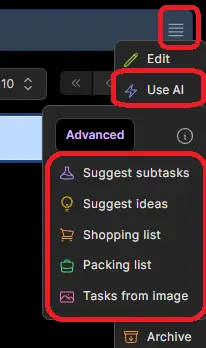
Select the AI option you want to use and apply it to the selected subtask.
3. From the task page
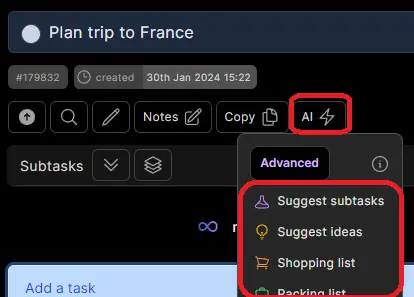
Select the AI action button and choose the AI option you want to apply to the current task. On mobile, the AI action is available from the bottom action bar.
4. From notes
You can also use AI from notes to clean up your writing, suggest note templates, or extract action items into tasks.
Types of AI help
Automatically break down a task into subtasks
This will suggest smaller subtasks that will help you achieve your task.
From the AI menu, select "Suggest subtasks". Alternatively, press the "g" key with a task selected.
Automatically generate ideas for a topic
This will suggest ideas for a given topic rather than next steps. For example, "types of cake I could bake" will generate a list of a different cake varieties.
From the AI menu, select "Suggest ideas". Alternatively, press the "i" key with a task selected.
Automatically create a shopping list
This feature works best when the task is a shopping related statement or question, e.g. "Get shopping for BBQ" or "What do I need for a BBQ?". If dypt detects that the task might not be shopping related, it will warn you before continuing.
From the AI menu, select "Shopping list". Alternatively, press the "s" key with a task selected.
Automatically create a packing list
This feature works best when the task is a packing related statement or question, e.g. "Pack for skiing holiday" or "What do I need for a skiing holiday?". If dypt detects that the task might not be packing related, it will warn you before continuing.
From the AI menu, select "Packing list". Alternatively, press the "p" key with a task selected.
Create tasks from an image
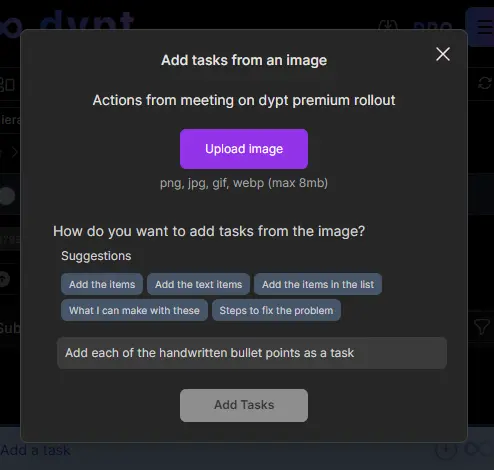
This feature allows you to create tasks from an image. You provide:
- an image featuring something you want to create tasks from
- a title for the task
- a prompt telling the AI how you wish to interpret the image
It works with many different approaches, for example:
- Create tasks from handwritten notes
- Create tasks from a whiteboard
- Create tasks from a photo of a mind map
- Create tasks from a screenshot of a document
- Create tasks from a photo of a book
- Create tasks from a photo of a recipe
- Create a step by step guide how to fix a broken object
- Suggest potential recipes from a photo of ingredients in your fridge
From the AI menu, select "Tasks from an image", then:
- Upload the image you want to create tasks from, you can upload from your computer, mobile or take a photo
- Provide a prompt telling the AI how you wish to interpret the image. The AI will use the title of the task itself, and parent task titles for context and the prompt to understand what you want to achieve. For example, if you want to create tasks from a whiteboard photo, enter the prompt "Create task for each of the points on the whiteboard"
Automatically generate time estimates for your tasks
This will make a guess at how long your subtasks will take to complete. It is based on the task title and the titles of any parent tasks. It is a rough estimate and should be used as a guide only, but we hope it will help you plan your day.
From the AI menu, select "Estimate time".
For more on time estimates, see time tracking.
Clean up notes and extract tasks
When you are writing notes, dypt can help tidy the wording, suggest a useful template, or extract action items into tasks.
This is useful when your notes contain useful context, meeting notes, research, or a rough list of things to do that you want to turn into a clearer task structure.
What happens after I use the AI features?
When you use one of the AI features, dypt processes the request with an AI model.
It is given your task title, and the titles of any parent tasks so that it understands the larger context of what you're trying to achieve.
dypt shows progress while the AI action runs. Once ready, dypt adds the generated subtasks, updates time estimates, or applies the note changes depending on the action you selected. You can edit any generated content afterwards as you would with any other task or note.
Using AI features uses AI actions. Each AI feature uses 1 AI action, whether you choose Fast or Deep mode.
What happens to my data when I use the AI features?
dypt uses OpenAI as our third-party AI provider.
Fast and Deep both use GPT-5 series models. The exact models may change over time as newer options become available.
When you use one of the AI features, dypt sends only the content needed for that action. This may include the task title, parent task titles for context, subtask titles, note content, uploaded image content, and any prompt you provide.
Requests are sent securely and are not used by OpenAI to train models through the API. For more detail, see OpenAI's API data privacy page.